

Google Nest Cameras have become a household name. Owing to their specifications, and advanced features they offer, these cameras are the best surveillance devices you can buy. From easy setup and maintenance, to convenient installation and more, there can be more than ten if not hundred reasons why experts recommend these cameras. However, given there are external devices involved, like the main router they connect to for internet, they can face issues with connectivity, video quality, etc. This is where finding the exact cause behind the issue and taking proper steps becomes important. But, what if these troubleshooting steps don’t help? This is where learning how to factory reset Google Nest cameras becomes important.
Resetting the Nest camera means you are taking the device back to the state it was when it got manufactured. Doing so helps eliminate any issues along with delete the current device configuration. And so, when you reconfigure the device, it functions like new. This blog, will explain all the steps you can follow to complete the Google Nest Reset process.
What does it mean to reset Google Nest Camera?
Before you restart/ factory reset your Google Nest Camera, it becomes important to understand what to expect.
- When you factory reset the device, it erases all the settings you configured, including any customisations, entire video history and restore the default factory settings. Since Google doesn’t keeps backups, you won’t be able to recover lost data. So, if there’s anything important, save them to your computer/ local storage.
- When the device reboots after the setup, it won’t automatically reconnect to the WiFi network it was previously connected to, and you’ll need to set those things up again. You might see camera ‘offline’ message on the app, but you’ll need to remove it and then readd the camera to the same.
So, unless you have the knowledge and understanding of how to proceed with the setup and configuration process, and you don’t want to lose continuity, do not reset your Google Nest Camera. Instead, you can try restarting the camera and following some other troubleshooting steps.
Important: If you have your Nest camera with 1st gen Nest Aware subscription, which you are looking to remove and add to a new account, you’ll need to cancel it. This will remove subscription-only features like activity zones and delete the entire video history. If you are planning to continue using the camera with the same account, do not cancel the subscription.
How to reset Google Nest Camera?
Now that you are ready to reset your camera, here are some steps you can follow:
- Locate the reset button on the bottom of the camera head. You will find it between the power cord and the camera neck.
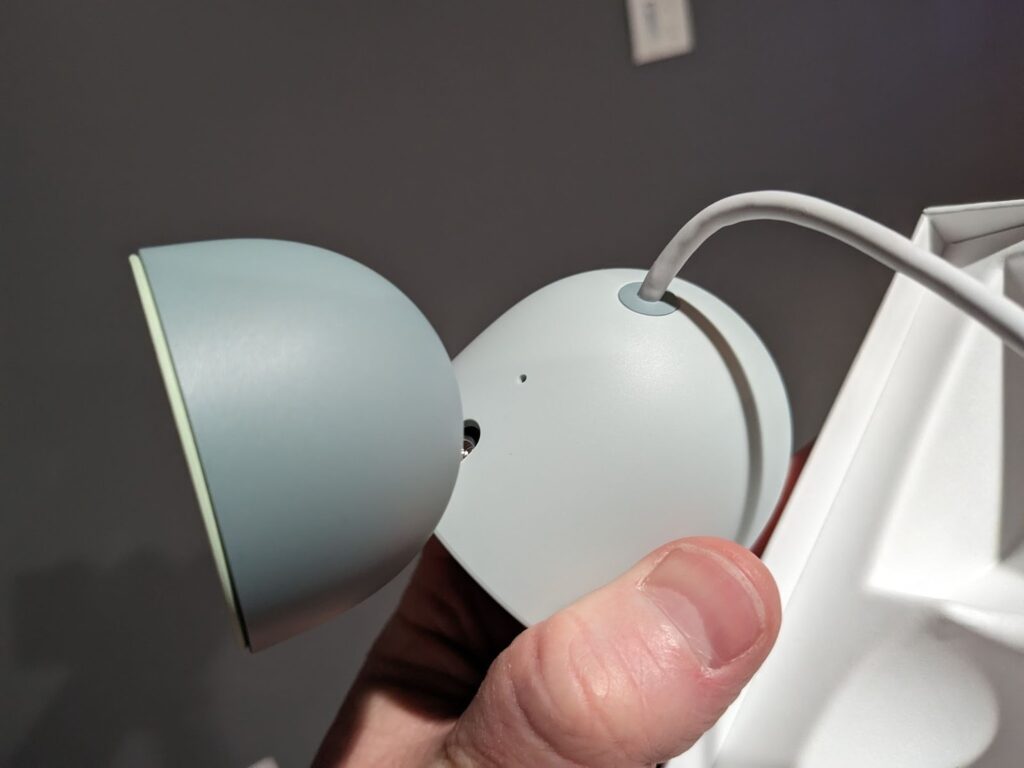
- Insert a paper clip, thumbtack or a similar thin object into the hole.
- Press the button and hold it down for about 12 seconds and the status light on the camera will turn solid yellow.
- Once you hear a confirmation beep sound from the camera, it is a sign that the reset process has started. Let go of the button and allow it to restore the settings.
- Once the Google Nest factory reset process is complete, you can add it back to the app. When you add the camera, the same will appear as ‘offline’. Make sure you remove it first and then add it back again.
Once these steps are followed, you will be able to add the camera in the Google Home App. Just go to the Devices tab and select the + button to add the camera. Now, follow the on-screen instructions to complete the setup process.
How to reset Google Nest Hub?
Google Nest Hub has two variants, namely- Google Nest Hub Max and the Google Nest Hub (2nd Gen). You can refer to the following steps to reset these devices easily.
How to factory reset a Google Nest Hub Max and Google Nest Hub 2nd Gen?
Before you reset your Nest Hub Max and Nest Hub 2nd Gen, you’ll need to remove them from the Google Home App. Once done, here are some steps you can follow:
- Press and hold the volume buttons together for about 10 seconds.
- Once you hear a confirmation sound, you can know that the device is resetting.
- Let go of the buttons and the devices will reset themselves.
FAQs
How to reset Google Nest camera?
You can factory reset your Google Nest camera using the reset button. Press and hold the same for about 12 seconds. Once you hear a sound emanating from the camera, let go of the button and allow the camera to restore its settings to factory default state. This will reset the camera and you can add it back again to the Google Home app.
How do I reset my Google Nest to new WiFi?
To reconnect a Google Nest to a new WiFi network, you can use the Google Home app. Here are some steps:
- Open the app and select the device you want to add to the WiFi network.
- Now, go to its settings and navigate to the WiFi options to remove the old network and set up a new one.
- As an alternative, you can also select the device and tap on the Gear icon for settings.
- From here, you can choose the option to ‘Setup a new network’ or update WiFi settings directly.
How do I reconnect my Nest camera to a new Wi-Fi?
To reconnect your camera to the new WiFi network, here are some steps you can follow:
- Bring your phone or tablet to the same room as your Nest camera.
- From the app home screen, tap on the ‘Settings’ option.
- Click on ‘Nest Connect’ and you may need to scroll down to find this option.
- Tap on the ‘Connect’ button whose settings you want to change.
- Tap on WiFi Connection and start the connection process from here onward.
The Final Word
Troubleshooting issues with your Nest camera is easy, however, when there’s no out, Google Nest reset becomes the only solution. That’s why learning how to reset a Google Nest camera can help you. The steps highlighted in this blog will help you complete the reset process with ease. If you face issues with the troubleshooting process, feel free to reach out to our expert team.