
Google Nest cameras are among the most advanced and feature-rich devices you can shop for your home. While being easy to set up and manage, these cameras can help you keep a vigilant eye on what’s going on and about at your place. If you have upgraded to a new Nest camera, or already have one that you have removed from the Nest app and wish to add back, this blog can help you. You’ll get complete information on how to connect Google Nest to WiFi at your home in easy steps.
Basic Nest Camera Setup Process
Installing your Nest camera is easy with an external mount that can be purchased. Once you have decided upon the location, you may proceed with the wifi set up in no time. You’ll only need the Google home app installed on your smartphone and then follow the on-screen instructions that you come across on the app. Here is the whole sequence of steps you can follow to complete the setup and installation process:
Downloading the Google Home App
Depending on the Nest camera model you own, you can either use the Google Home app or the Nest Camera App to set things up.
- Download the app from the Apple App Store or the Google Play Store. The Google Home app can be used to set up Nest Cam(wired) Nest cam with floodlight and nest cam(battery). Whereas, the Nest App can be used to set up Nest Cam IQ Indoor, Nest Cam IQ Outdoor, Nest Cam Indoor, Nest Cam Outdoor, and Nest DropCam(all models).
Once downloaded, you can follow the on-screen steps to complete the setup process.
How to connect Google Nest to WiFi?
We get a lot of questions like ‘how do I connect my Google Nest to WiFi’ and more. Well, once you have downloaded and installed the app, you can proceed with the rest of the setup process. If you already have the app installed, make sure the same is updated to the latest version. Once done, here are some steps you can follow for the setup process:
Using the Google Home App
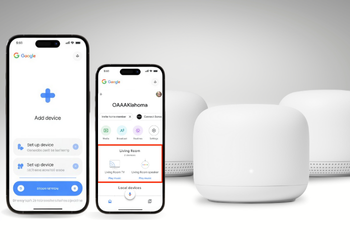
- Launch the Google Home app from the play store. If you see a prompt to sign in to your Google account, provide the credentials and proceed.
- From the home screen, tap on the Add Device or Service button. This will be a + icon on the top right.
- Now, select Set up Device from the screen.
- Now, tap on the New Device option.
- From the screen, select the home you wish to add your camera to or select Add Another Home to create a new one. You can then tap on the Next button.
- The app will now look for nearby devices. Once prompted, select the camera model you have to set it up.
Use your smartphone camera to scan the QR code on the camera. If you wish you can skip this step by clicking on Continue without Scanning and typing a setup code to proceed.
- The Google Home app will now walk you through the steps to connect Nest camera to WiFi and more.
Using the Nest App.
- Launch the Nest app and from the login screen, tap on the Create an Account button.
- On the app home screen that appears, tap on the Add button.
- Now, scan the QR code from the rear of your camera. You can also skip this step by tapping on Continue without Scanning button and using the Setup code to sync the camera with the app.
- The Nest camera app will now walk you through the steps to connect your Nest camera to WiFi network at home and configure the rest of the settings.
Adding your camera to the Home App after setup
Once you have set up your Nest camera, you can also add the Nest camera to your home in the Google Home app. This will allow you to control your camera and other connected devices remotely in easy steps.
How do I connect Google Nest to WiFi without issues?
Issues during the WiFi setup process can prevent you from connecting your Nest camera to the home network and question, ‘how to connect my google nest to wifi’ again. This can further prevent you from accessing the wireless home network and facilitating video recording on your camera. Here are some troubleshooting steps you can follow to resolve common issues with the camera’s WiFi setup process:
Move your camera closer to the networking device
If you are finding it difficult to connect your device to the home network, make sure the camera is within range. Here are some steps you can follow:
- Move your camera closer to the WiFi router or access point and try connecting your camera to the Nest app again.
- If the camera is already mounted, you can’t move it. In this case, you can move your router closer to the camera instead.
Restart your Nest Camera
If your camera runs on battery, you can take out the batteries from the battery compartment and insert them back after about 30 seconds. Alternatively, press the button on the back of the camera and wait for it to restart.
In the case of the wired camera models, you can unplug the camera’s power adapter from the power outlet. Wait for at least 30 seconds and then plug it back again. Your camera will restart automatically. If you have a Nest Doorbell camera, disconnect it from the mounting plate using the tool that comes in the box.
Check your home WiFi network
See if the internet connection at your home is working or not. Check for any server downtimes, and contact your ISP in case the issue is recurring.
You can also try restarting your wireless router/extender to make sure it doesn’t have any issues in it. Once the internet connection is back online, you can connect Nest camera to wifi easily.
Use the correct WiFi credentials
When you are connecting to a home wifi network, make sure you are using the correct credentials to connect. If the password is incorrect, you will receive an error stating can’t connect. If you are sure you are using the correct password, check if you are connecting to the correct network. Two or more networks can have a similar SSID and making sure it doesn’t interfere with the connection process is important.
The Final Word
Nest cameras are indeed great devices for your home monitoring needs. However, they are only as good as your internet connection. If your Nest camera is facing issues with connectivity and it has left you wondering how to connect Google Nest to WiFi the right way, the information shared in this blog can help. If you face any issues with the WiFi setup process or even the basic installation process, feel free to reach out to the team.